Contents · 8

When Google Ads isn’t paying off, the first instinct is to raise bids or switch bidding strategies. More often, though, the money goes to the wrong place long before bids come into play: searches from people who never intended to buy, products that are out of stock, and clicks on your own brand name from people who would have found you for free.
Below we walk through where an online store’s Google Ads budget actually leaks and how to check it yourself. The order: what you measure, search terms, negative keywords, the product feed, campaign structure and default settings.
Start with what you’re measuring
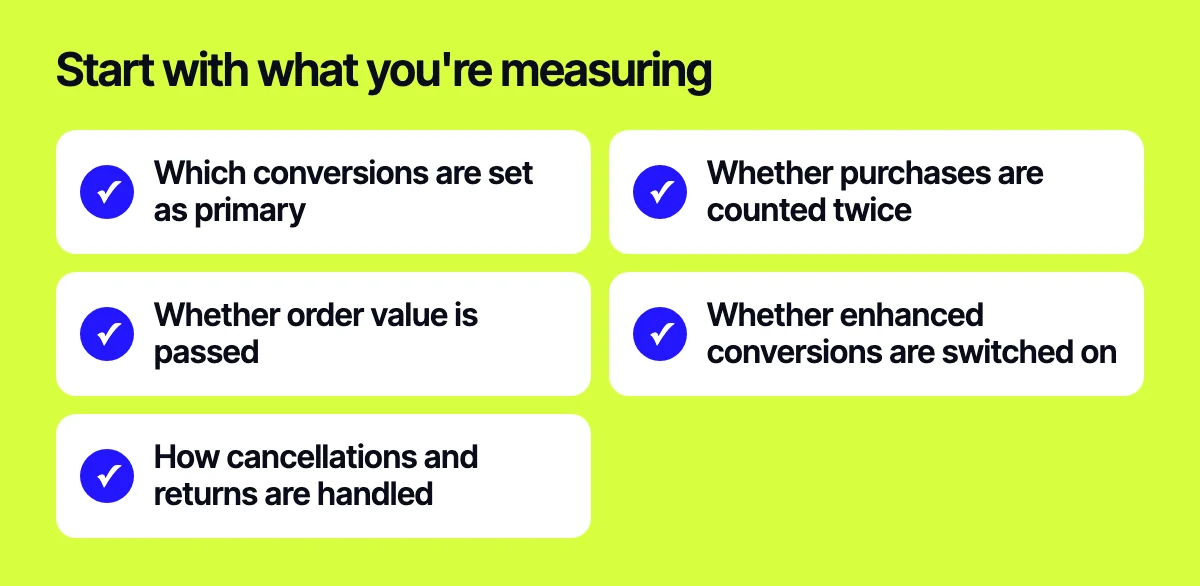
Before cutting spend, make sure Google Ads sees real sales. Otherwise automated bidding optimises for the wrong goal. Check:
- Which conversions are set as primary. If add to cart or page view is among them, the algorithm will buy more of those, not orders.
- Whether purchases are counted twice, for example a Google Ads tag and a GA4 import both set as primary actions.
- Whether order value is passed, not just the fact of a purchase. Target ROAS can’t work without it.
- Whether enhanced conversions are switched on, so you lose less data to cookie restrictions.
- How cancellations and returns are handled. If your return rate is high, adjust conversion values accordingly.
Search terms: what your ads are really buying
A keyword and a search term are not the same thing. You bid on “buy running shoes”, and your ad shows for “running shoes DIY repair”, “used running shoes” and “running shoe store jobs”. Broad match makes this more frequent.
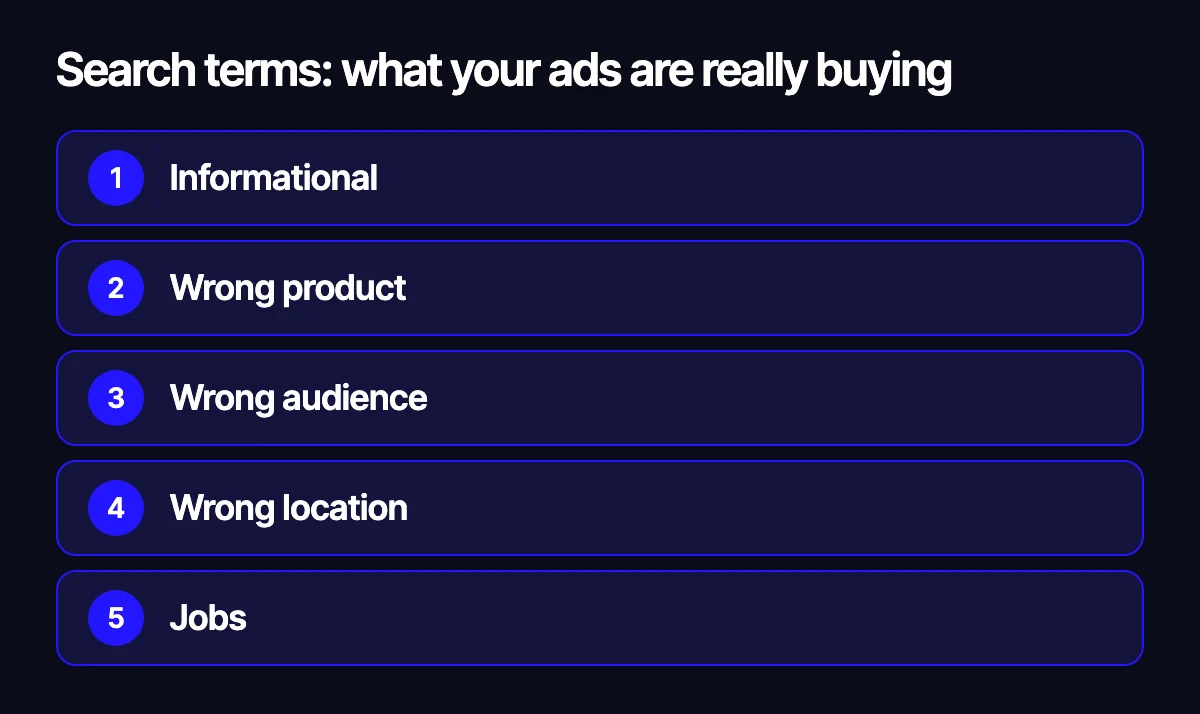
Open the Search terms report for the last month and sort by cost. Focus on terms with clicks and no conversions. The usual junk falls into a few groups:
- Informational: how to, what is, review, manual, DIY.
- Wrong product: other models, brands you don’t carry, spare parts instead of the whole device.
- Wrong audience: wholesale when you sell retail and vice versa, free, used, rental.
- Wrong location: cities and countries you don’t ship to.
- Jobs: careers, hiring, salary.
Performance Max doesn’t give you a full search terms report, but it does show search term insights in the campaign’s Insights section. Review them just as regularly.
When there are lots of terms, look at individual words rather than full phrases. Export the report to a spreadsheet and group spend by recurring words. You’ll quickly see that, say, every term containing “repair” adds up to a noticeable share of spend with no sales.
Negative keywords: how to organise them
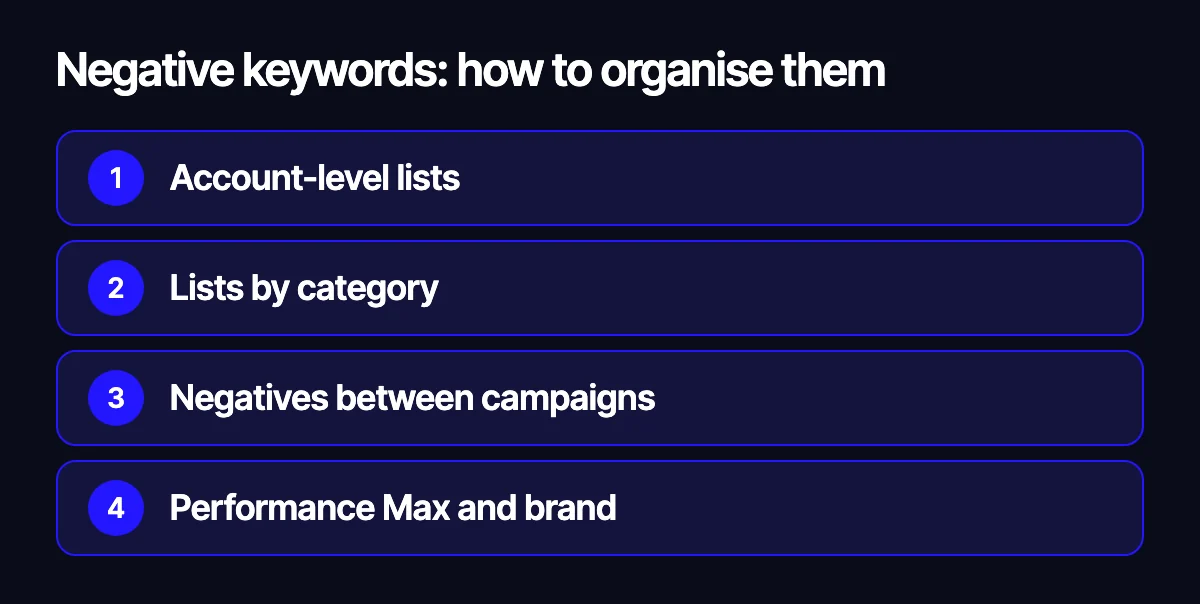
Negative keywords are the cheapest way to stop paying for irrelevant clicks. Adding them one by one to each campaign is slow and error-prone, though. Here’s how we set them up:
- Shared, account-level negative lists for anything you never sell: jobs, free, courses and so on.
- Category-specific lists: if you only sell new electronics, “used” and “repair” go into a separate list.
- Campaign-level negatives to split brand and non-brand campaigns so they don’t compete with each other.
- For Performance Max, account-level negatives plus brand exclusions when brand traffic runs in its own Search campaign.
Be careful with broad match negatives. A single careless word can cut off valuable traffic. Before adding one, check which converting search terms it would block.
The product feed: ads show what the feed says
Shopping and Performance Max campaigns have no keywords. Google largely decides which searches to show a product for based on your Google Merchant Center feed. A weak feed means impressions on the wrong searches and missed impressions on the right ones.
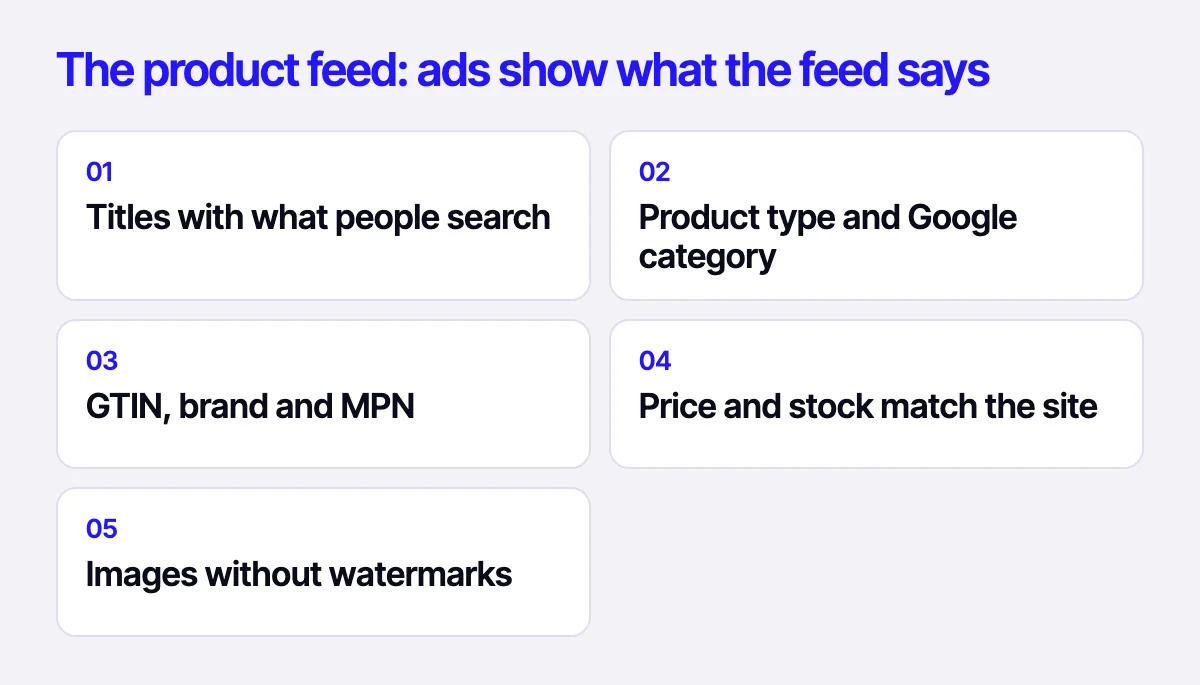
What to check in the feed:
- Titles. Lead with what people search for: brand, product type, model, key attribute (size, colour, capacity). An internal ERP name like “Run shoe M blu” doesn’t work.
- Product type and Google product category are filled in and accurate.
- GTIN, brand and MPN are provided wherever they exist. They help Google match products to searches.
- Price and availability match the website. Mismatches lead to disapprovals.
- Images have no watermarks or overlay text.
If your platform won’t let you edit titles and attributes just for ads, use a supplemental feed in Merchant Center. It overrides the fields you need without touching data on the site.
A separate leak is products that are out of stock or don’t make you money. If the feed updates once a day while stock levels change every hour, ads keep spending on items you can’t ship. The fix is to sync the feed with your inventory system or ERP, such as SAP or Odoo, or with your store platform, whether that’s Shopify or a custom build.
Campaign structure: separate what behaves differently
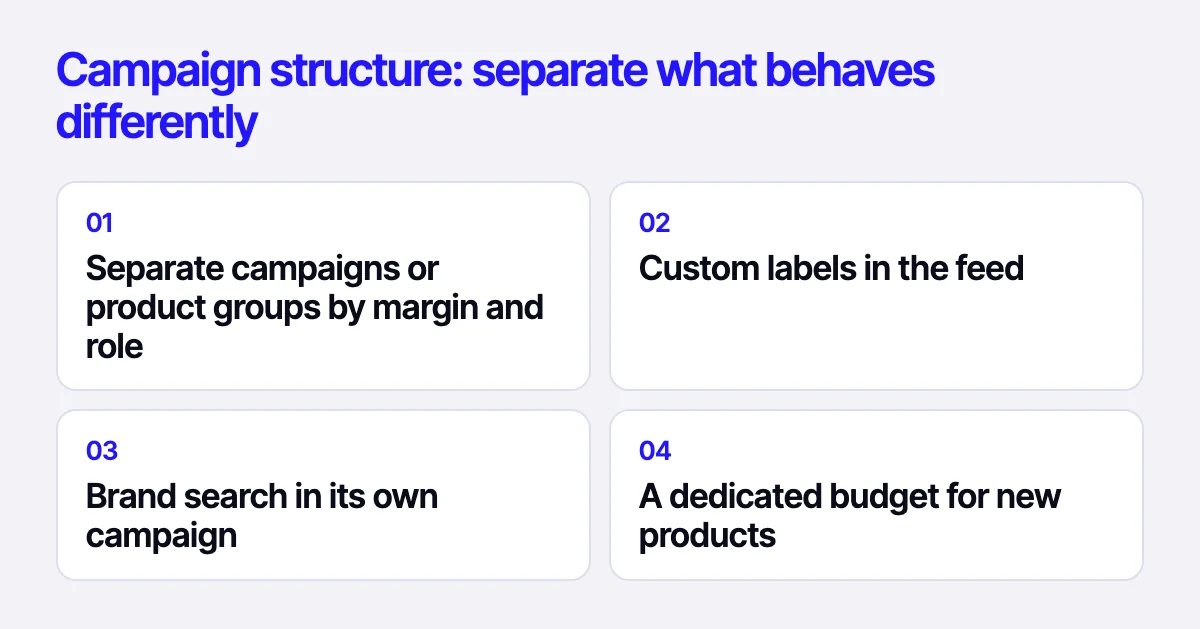
If the whole catalogue sits in one Performance Max campaign, the budget usually flows to a small set of products the algorithm decided were winners. The rest of the range barely gets shown, and you can’t see why.
What helps:
- Separate campaigns or product groups by margin and role: bestsellers, high-margin items, new arrivals, clearance.
- Custom labels in the feed (custom_label) to drive that split: margin band, season, price range.
- Brand search in its own campaign, so you can see what orders from people already looking for your store really cost.
- A dedicated budget for new products, or they never get the chance to build up data.
Settings that quietly burn money
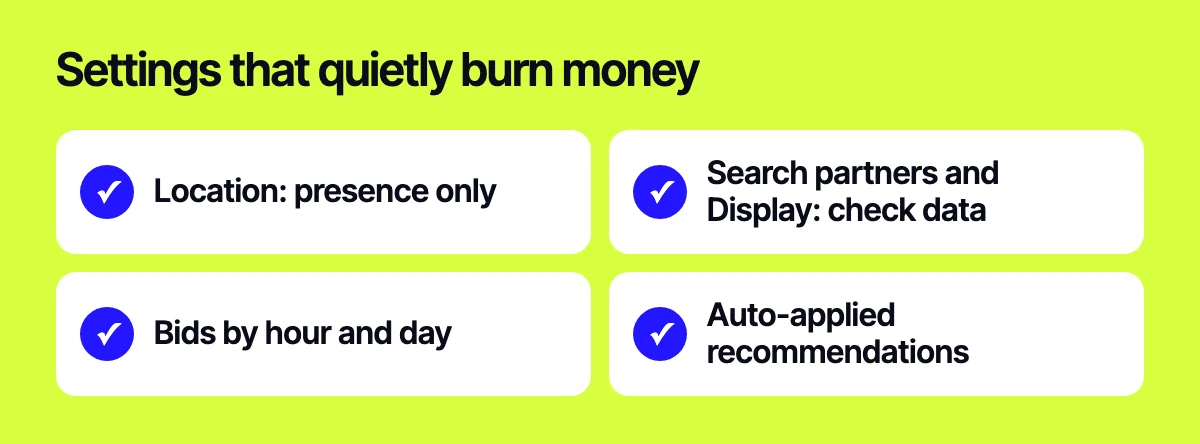
A few defaults are worth checking in every campaign:
- Location targeting: “presence or interest” shows ads to people outside your delivery area. A store usually wants “presence” only.
- Search partners and the Display Network in Search campaigns. Sometimes they work, but test that with data instead of leaving the default on.
- Ad schedule: look at conversions by hour and day of week and lower bids where nobody buys.
- Auto-applied recommendations: some of them broaden match types and add keywords without you noticing.
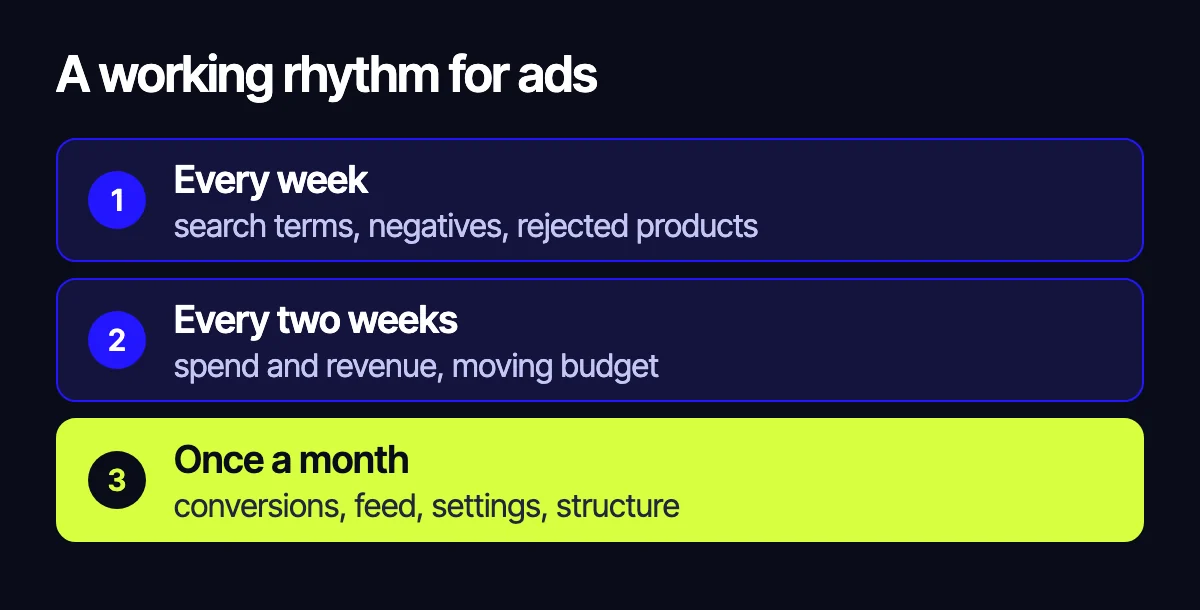
A regular routine
Budget leaks don’t get fixed once and for all. Here’s the rhythm we keep:
- Weekly: search terms report, new negatives, disapproved products in Merchant Center.
- Every other week: spend versus revenue by product group, and budget shifts.
- Monthly: conversion setup, feed quality and location settings, plus a review of campaign structure.
None of this requires a bigger budget. If anything, it frees money up for the products and searches that actually bring in orders.
Related reading: 12 places where an online store loses buyers; ways to increase average order value; how to prepare a store for a seasonal sale: codes, BOGO and giveaways.
Let us check your account
If you feel your ads are spending more than they should, send us your task through the form on the site, on Telegram, WhatsApp or by e-mail. We’ll review your search terms, feed and conversion tracking and show you where the budget is going.
Leave your contact – we'll reply within one business day wherever suits you.